Stop Typing the Same Call Notes Over and Over: Use Quick Text Instead
The Problem (Quick Summary)
You're logging calls in Salesforce dozens of times a day, and you find yourself typing the same phrases over and over: "Left voicemail," "Will follow up next week," "Discussed pricing options." Your fingers are tired, you're wasting time, and there's a faster way that takes just a few minutes to set up.
Why This Matters
Think about how many calls you log each week. If you're typing similar notes 20, 30, or 50 times, you're losing hours of productive selling time.
What's the cost of NOT using Quick Text?
- Time waste: Typing the same phrases repeatedly adds up to hours per month
- Inconsistency: Your call notes look different each time, making it harder to track patterns
- Typing errors: When you're in a rush, mistakes happen in your documentation
- Mental fatigue: Deciding how to phrase the same thing every time drains your energy
What becomes possible when you use Quick Text?
- Log calls in seconds instead of minutes
- Keep consistent, professional notes without thinking
- Spend your mental energy on actual selling, not documentation
- Build a library of your most useful phrases that grows with you
Understanding Quick Text: The Text Expansion Analogy
Think of Quick Text like having a personal assistant who remembers your most common phrases.
It works like autocomplete on steroids:
- Phone autocomplete: Your phone suggests "On my way!" after you type a few letters
- Quick Text: You click a button and select "Left voicemail - will follow up tomorrow" from your saved messages
Instead of typing common phrases from scratch every time you log a call, you create a library of reusable text snippets. You build your collection once, then insert them with a click whenever you need them.
The key difference from just copy-pasting: Quick Text can include merge fields - placeholders that automatically fill in with real data from your records. So "Hi [Contact Name]" becomes "Hi Sarah Johnson" automatically based on whose record you're working on.
The Solution: How to Speed Up Call Logging
Implementation Difficulty: ⭐⭐☆☆☆ (2/5)
Development Required: No code needed (but admin must enable the feature)
Time to Implement: 5 minutes per Quick Text
What You'll Need
- Quick Text must be enabled in your Salesforce org (ask your admin if you don't see it)
- 5 minutes to think about what phrases you type most often
- Permission to create Quick Text (most users have this by default)
Important Note About Setup
If you're an admin: You need to enable Quick Text first in Setup → Quick Text Settings. Once enabled, everyone in your org can create their own Quick Text.
If you're a regular user: Quick Text might already be enabled. If you can't find it, ask your Salesforce admin to turn it on - it's a simple checkbox.
Step-by-Step: Creating Your First Quick Text
Step 1: Find Quick Text
- Click the App Launcher (the waffle/grid icon in the top left)
- Type "Quick Text" in the search box
- Click on Quick Text from the results
You'll see a list view showing any Quick Text that already exists.
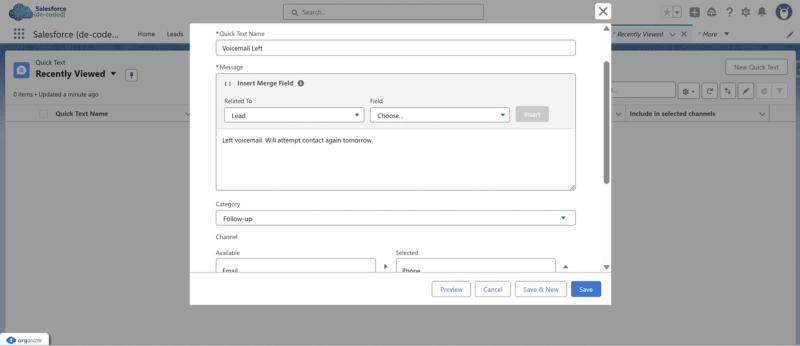
Step 2: Create New Quick Text
- Click the New button
- Fill in the following fields:
Name: Give it a clear name (this helps you find it later)
Example: Voicemail Left
Message: Write the text you want to insert
Example:
Left voicemail. Will attempt contact again tomorrow.
Category: Choose from the dropdown (default categories: Greetings, FAQ, Closings)
You can pick any that makes sense, or just leave it as "Quick Text"
Channel: This is crucial! Select where you want to use this Quick Text.
For Log a Call, select Task
You can select multiple channels if you want to use the same text in emails, events, etc.
Step 3: Save It
- Click Save
- Your Quick Text is now ready to use!
Step-by-Step: Using Quick Text When Logging Calls
Step 1: Start Logging a Call
- Open any record (Account, Contact, Opportunity)
- Click Log a Call in the Activity timeline
- The Log a Call window opens with a Comments field
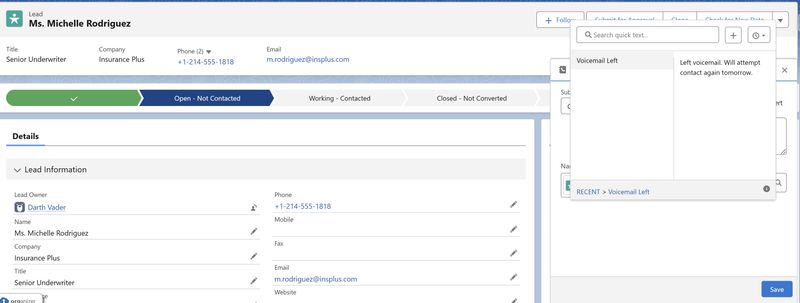
Step 2: Insert Your Quick Text
Method 1: Click the Button
- Look for the Quick Text button on the right side of the Comments field (it looks like a small quote/message icon)
- Click it to open the Quick Text picker
- Browse or search for your message
- Click on the Quick Text you want - it instantly inserts into your Comments
Method 2: Keyboard Shortcut
- Click into the Comments field
- Press Ctrl + . (Windows) or Cmd + . (Mac)
- The Quick Text picker opens
- Select your message and press Enter
Step 3: Finish Logging
- The text is now in your Comments field
- You can edit it if you need to add specifics
- Fill in other fields (Subject, Name, etc.)
- Click Save
Pro Tips
💡 Start with 3-5 Messages: Don't try to create 50 Quick Texts on day one. Start with your top 3-5 most common phrases, use them for a week, then add more as you notice patterns.
💡 Use Merge Fields for Personalization: Include field values in your Quick Text! For example:
Following up with {!Contact.FirstName} regarding {!Opportunity.Name}
Salesforce automatically fills in the actual values from the record you're working on.
💡 Organize with Categories: As you build more Quick Texts, use categories to organize them. Create categories that match your workflow (e.g., "Call Outcomes," "Follow-ups," "Objections Handled").
Quick Text Ideas to Get You Started
Quick Text Ideas to Get You Started
Here are some commonly useful Quick Texts for call logging. Start with 3-5 that match your most common scenarios:
When you can't reach the decision maker:
- "Spoke with assistant - will call back at suggested time"
- "Decision maker out of office until [date]"
- "Contact unavailable - asked to call back next week"
After successful conversations:
- "Discussed product features. Demo scheduled for [date]"
- "Discussed pricing options and package details"
- "Connected call - customer requested detailed proposal"
When handling objections:
- "Addressed concerns regarding timeline and implementation"
- "Discussed budget constraints - following up with adjusted proposal"
Remember to select Phone as the channel when creating these for use with Log a Call. If you also want to use the same text when creating Events, add Event as an additional channel.
Quick Wins: What to Do Right Now
If you only have 5 minutes:
- Check if Quick Text is enabled - open the App Launcher and search for "Quick Text"
- If it's not there, send a quick message to your Salesforce admin asking them to enable it
- If it IS there, create ONE Quick Text for your absolute most common phrase (probably "Left voicemail")
If you have 20 minutes:
- Review your last 10 logged calls
- Identify the 5 phrases you type most often
- Create Quick Texts for each one
- Log your next 3 calls using Quick Text to build the habit
- Notice how much faster it feels